-
How to Troubleshoot Unstable Mobile Apps: A Step-by-Step Fix Guide
How to Troubleshoot Unstable Mobile Apps: A Step-by-Step Fix Guide
Mobile apps crash at the worst possible moments — mid-transaction in your crypto wallet, right as a DEX trade is executing, or while you're reviewing a chart on a trading platform. The frustration is real, but most instability issues follow predictable patterns with equally predictable fixes. This guide walks you through a clear escalation path: from the fastest basic fixes to advanced crash log analysis.
What "Unstable" Actually Means (and Why It Matters)
An unstable app is any app that behaves inconsistently or fails to complete expected actions reliably. That covers a wide range of symptoms — sudden crashes, frozen screens, blank white or black interfaces, unresponsive touch inputs, or apps that launch and immediately close.
Why does the definition matter? Because different symptoms often point to different root causes. A blank screen on launch usually suggests a cache or memory issue. Crashes specifically during transaction signing in a crypto wallet app often indicate an RPC endpoint problem or a memory spike during cryptographic processing. Knowing what "unstable" looks like in practice helps you skip irrelevant fixes and target the actual problem faster.
On iOS, the operating system aggressively manages background processes, so apps may appear to crash when they're actually being terminated by the system. On Android, the behavior varies more widely depending on the manufacturer's OS skin and RAM management policies. These differences matter when you start diagnosing.
Common Root Causes of Mobile App Instability
Most app instability traces back to five core causes, and understanding them cuts your troubleshooting time significantly.
- Corrupt or bloated app cache — Apps store temporary data locally to speed up performance. Over time, this cache can become corrupted or oversized, causing erratic behavior or crashes on launch.
- RAM and memory pressure — When too many background processes compete for limited memory, the OS starts terminating apps aggressively. This looks like a crash but is actually a resource management issue.
- OS version compatibility mismatches — An app built for Android 13 may behave unpredictably on Android 11, or an iOS app not yet updated for the latest firmware may trigger unexpected failures.
- Outdated app builds — Developers push bug fixes and security patches regularly. Running an old version of MetaMask Mobile or Trust Wallet, for instance, can expose you to known bugs that were patched weeks ago.
- Network instability — This one gets misdiagnosed constantly. A slow or dropping connection can make an app appear frozen when it's actually waiting on a network response that never arrives.
Device storage is another underrated culprit. When a device drops below roughly 10% free storage, apps struggle to write temporary files and logs, which causes write errors that manifest as crashes. This is especially common on budget Android devices with limited internal storage.
Basic Fixes to Try First (Works for Most Apps)
Start here before anything else — these steps resolve the majority of instability issues across both Android and iOS without risking data loss.
Force Stop the App
On Android, go to Settings → Apps → [App Name] → Force Stop. This terminates all app processes cleanly, clearing any stuck threads. On iOS, swipe up from the bottom of the screen (or double-press the Home button on older models) to open the app switcher, then swipe the app card upward to quit it. Both platforms benefit from a clean restart rather than just switching away from the app.
Clear the App Cache (Android)
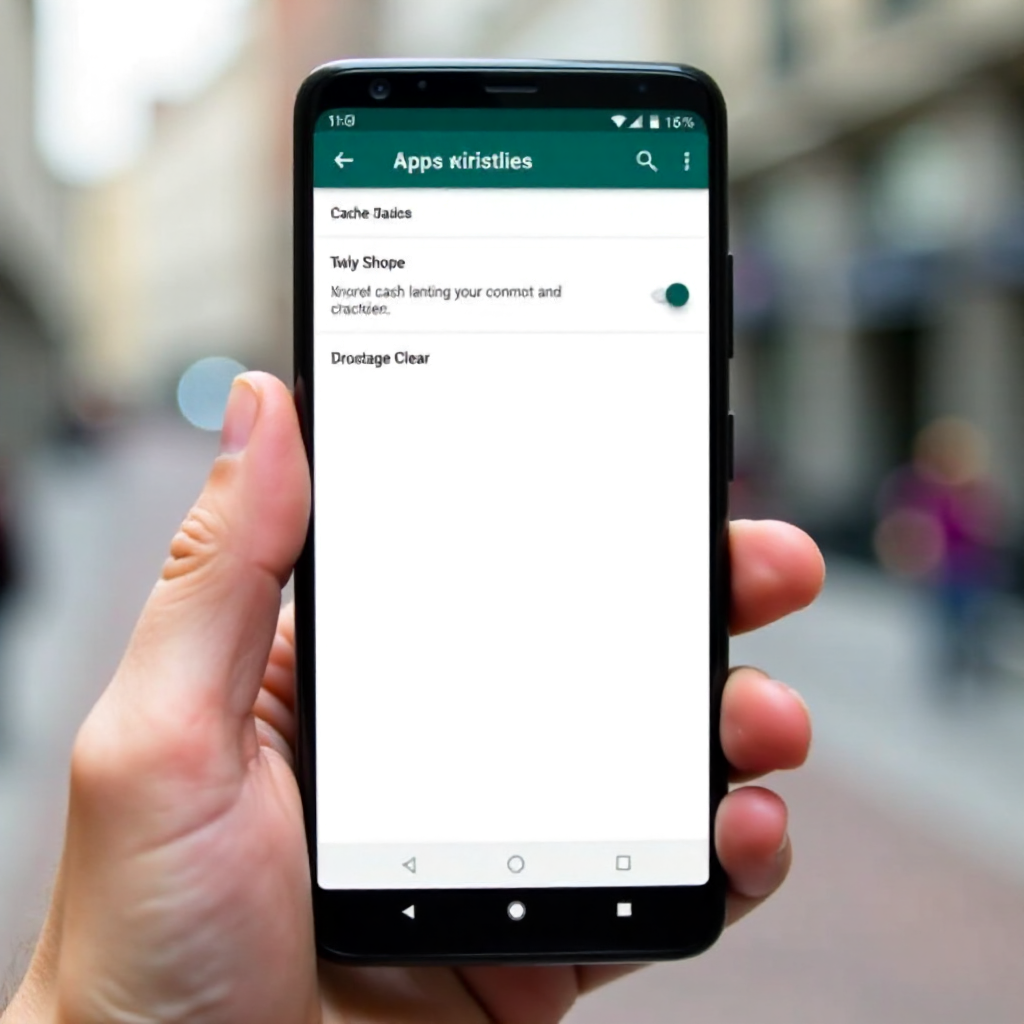
Android allows direct cache clearing via Settings → Apps → [App Name] → Storage → Clear Cache. This removes temporary files without touching your account data, login sessions, or — critically for crypto apps — your stored wallet information. iOS doesn't offer the same granular control; the equivalent is usually offloading and reinstalling the app, covered in the intermediate section below.
Restart Your Device
A full device restart clears RAM, resets network connections, and stops background processes that may be starving your app of resources. It sounds basic because it is — and it works more often than people expect.
Check Available Storage
If your device has less than 1-2 GB of free space, clear it before doing anything else. Delete unused apps, old photos, or cached media. On Android, check under Settings → Storage. On iOS, go to Settings → General → iPhone Storage.
How to Troubleshoot Crypto and Web3 Apps Specifically
Crypto wallet apps and Web3 platforms have failure modes that general troubleshooting guides miss entirely. If you're using MetaMask Mobile, Trust Wallet, Coinbase Wallet, or a DEX interface like Uniswap's mobile app, some instability is specific to how these apps interact with blockchain infrastructure.
RPC Endpoint Errors
Wallet apps connect to blockchain networks through RPC (Remote Procedure Call) endpoints. If the default RPC is congested or down, your app may hang indefinitely during transaction signing or fail to load your balance. In MetaMask Mobile, you can switch networks or add a custom RPC endpoint under Settings → Networks. Using a reliable provider like Alchemy or Infura's public endpoints can resolve this without any reinstallation.
Transaction Signing Crashes
If your wallet crashes specifically when approving a transaction, the issue is often a memory spike during cryptographic signing. Close all other apps first to free RAM, then retry. If the crash persists, check whether the app has a pending update — developers frequently patch signing bugs in point releases.
dApp Browser and WalletConnect Issues
Web3 apps connecting through WalletConnect or an in-app dApp browser are prone to session timeouts and connection drops that look like app bugs. Disconnect and reconnect the WalletConnect session from scratch. Clear the browser cache within the wallet app if that option exists. These steps fix the majority of "app won't respond" issues in DeFi contexts.
Intermediate Fixes — Updates, Permissions, and Reinstallation
If basic fixes didn't resolve the problem, the next tier targets the app's configuration and installation integrity.
Update the app first. Open the App Store or Google Play, search for the app, and check for a pending update. Outdated builds are one of the most common sources of persistent instability, especially in fast-moving crypto apps where developers push fixes frequently. On Android, you can also check whether a newer APK is available through the developer's official site if the Play Store version lags behind.
Next, review app permissions. A misconfigured permission — like a wallet app denied access to the camera when it needs it for QR code scanning — causes functional failures that look like crashes. On Android, go to Settings → Apps → [App Name] → Permissions. On iOS, check Settings → [App Name]. Grant only the permissions the app legitimately needs, but make sure none are incorrectly blocked.
If the app is still misbehaving, consider a clean reinstall. Before uninstalling any crypto app, back up your seed phrase and private keys. This cannot be overstated. Uninstalling MetaMask Mobile or Trust Wallet does not delete your funds — those live on the blockchain — but without your seed phrase, you cannot recover access to the wallet. Confirm your backup, then uninstall, restart the device, and reinstall from the official store.
Also worth testing: switch between Wi-Fi and mobile data. Network instability is frequently misidentified as an app bug. If the app works on one connection but not the other, the problem is your network, not the app.
Advanced Diagnosis — Reading Crash Logs and Reporting Bugs
When standard fixes fail, crash logs give you the information needed to either solve the problem yourself or give developers something actionable to work with.
On Android, logcat is the primary tool. With Android Studio installed on a desktop, connect your phone via USB, enable USB debugging in Developer Options, and run
adb logcatto stream real-time logs. Reproduce the crash, then search the output for lines tagged with the app's package name or "FATAL EXCEPTION." These entries identify the specific function or thread that failed.On iOS, crash reports are generated automatically and stored on the device. Access them via Settings → Privacy & Security → Analytics & Improvements → Analytics Data. Look for files named after the app with a
.ipsor.crashextension. You can also retrieve symbolicated crash reports through Xcode's Devices and Simulators window when connected to a Mac.When submitting a bug report to a developer, include: your device model, OS version, app version, a description of the exact steps that reproduce the crash, and the relevant section of the crash log. Vague reports like "the app crashes sometimes" rarely get prioritized. Specific, reproducible reports with log data get fixed.
How to Prevent App Instability Going Forward
Prevention is mostly about consistent maintenance habits rather than any single action.
- Keep your OS updated. Firmware updates frequently include memory management improvements and security patches that affect app stability across the board.
- Enable automatic app updates, or check manually every week or two — especially for crypto apps where security and bug fixes ship frequently.
- Maintain at least 10-15% free device storage at all times. Set a reminder to clear old files monthly if your device fills up quickly.
- Monitor app changelogs before updating. For crypto apps, a major version update occasionally introduces new bugs. Waiting a few days after a major release and reading user reviews first is a reasonable practice.
- Use stable network connections for sensitive operations. Signing blockchain transactions over an unreliable connection increases the chance of a failed or stuck transaction, which can look like an app problem.
One habit that pays off specifically for Web3 users: periodically review which dApps have active WalletConnect sessions in your wallet and revoke any you no longer use. Stale sessions can cause connection errors that are easy to mistake for app instability.
Frequently Asked Questions
Why does my crypto wallet app keep crashing when I try to send a transaction?
The most common causes are an overloaded RPC endpoint, a memory spike during transaction signing, or an outdated app build with a known bug. Try switching your RPC endpoint in network settings, close background apps to free RAM, and check for a pending update before attempting the transaction again.
Does clearing the app cache delete my saved data or wallet keys?
No. Clearing the cache removes temporary files only. Your wallet keys, account data, and login sessions are stored separately and are not affected by a cache clear on Android. On iOS, offloading an app preserves your data while freeing storage — a full delete does not.
How do I know if the problem is my phone or the app itself?
Test the app on a different network connection and, if possible, on a different device. Check community forums or the app's official social channels to see if others are reporting the same issue. If it's widespread, the problem is server-side or a bad app release. If it's isolated to your device, start with cache clearing and a device restart.
Is it safe to reinstall a crypto app — will I lose access to my funds?
Your funds are safe as long as you have your seed phrase backed up before uninstalling. Crypto assets exist on the blockchain, not inside the app. Reinstalling simply gives you a fresh app installation; entering your seed phrase during setup restores full access to your wallet.
What should I do if none of the troubleshooting steps fix the issue?
Collect a crash log using the methods described in the advanced diagnosis section and submit a bug report to the developer through their official support channel or GitHub repository. For crypto apps specifically, check the project's Discord or Telegram for real-time incident updates — outages are often acknowledged there before official status pages are updated.