-
How to Reduce Background Data Usage on Android and iOS (Step-by-Step)
How to Reduce Background Data Usage on Android and iOS (Step-by-Step)
What Is Background Data and Why It Matters
Background data is the mobile data your apps consume when you're not actively using them. While your screen is off or you're browsing a different app, dozens of processes are quietly syncing, fetching updates, refreshing feeds, and pinging remote servers — all on your data plan.
This differs from active usage, where you're directly interacting with an app. Background activity happens silently, which is exactly why it catches people off guard when they hit their monthly data cap.
For most users, the impact is a slow bleed — a few megabytes here, a few there. But for anyone running crypto wallet apps, portfolio trackers, or trading platforms, the drain can be substantial. These apps are designed to stay current with live market data, which means they're constantly reaching out for updates even when you're not watching.
Beyond data costs, background activity also affects battery life and, on older devices, overall performance. Cutting it back is one of the most efficient ways to stretch both your data allowance and your charge.
How to Check Which Apps Are Using the Most Background Data
Before restricting anything, identify the actual offenders. Both Android and iOS have built-in data usage dashboards that break down consumption by app — including background activity specifically.
On Android
- Go to Settings → Network & Internet → Data Usage (path may vary slightly by manufacturer)
- Tap Mobile Data Usage to see a ranked list of apps by consumption
- Tap any app to see the split between foreground and background data
- Set the time range to the current billing cycle for the most relevant view
On iPhone (iOS)
- Go to Settings → Cellular
- Scroll down to see per-app cellular data usage since the last reset
- Note: iOS doesn't separate foreground from background in this view, but apps with Background App Refresh enabled are the primary background consumers
- Reset stats at the start of each billing cycle via Reset Statistics at the bottom of the page
Look for surprises — social media apps, news aggregators, and cloud backup services are frequent heavy hitters. Crypto and trading apps often appear higher on the list than users expect.
How to Restrict Background Data on Android
Android gives you granular control over background data, both per-app and system-wide. The most effective approach combines all three methods below.
Per-App Background Data Toggle
- Go to Settings → Apps and select the app you want to restrict
- Tap Mobile Data & Wi-Fi (or "Data Usage" depending on your Android version)
- Toggle off Background Data
This prevents the app from using mobile data in the background. It can still sync when you open it. Repeat for each high-usage app identified in your dashboard.
Data Saver Mode
Data Saver is Android's system-wide background data restriction. Enable it via Settings → Network & Internet → Data Saver. When active, it blocks background data for all apps except those you explicitly whitelist. It's the nuclear option — effective, but you'll want to whitelist any app that needs to deliver push notifications reliably.
Battery Optimization as a Secondary Control
Android's battery optimization settings also limit background activity. Go to Settings → Battery → Battery Optimization, find an app, and set it to "Optimized" or "Restricted." This won't block data outright, but it reduces how often apps can wake up and sync in the background — a useful complement to the data controls above.
How to Limit Background App Refresh on iPhone (iOS)
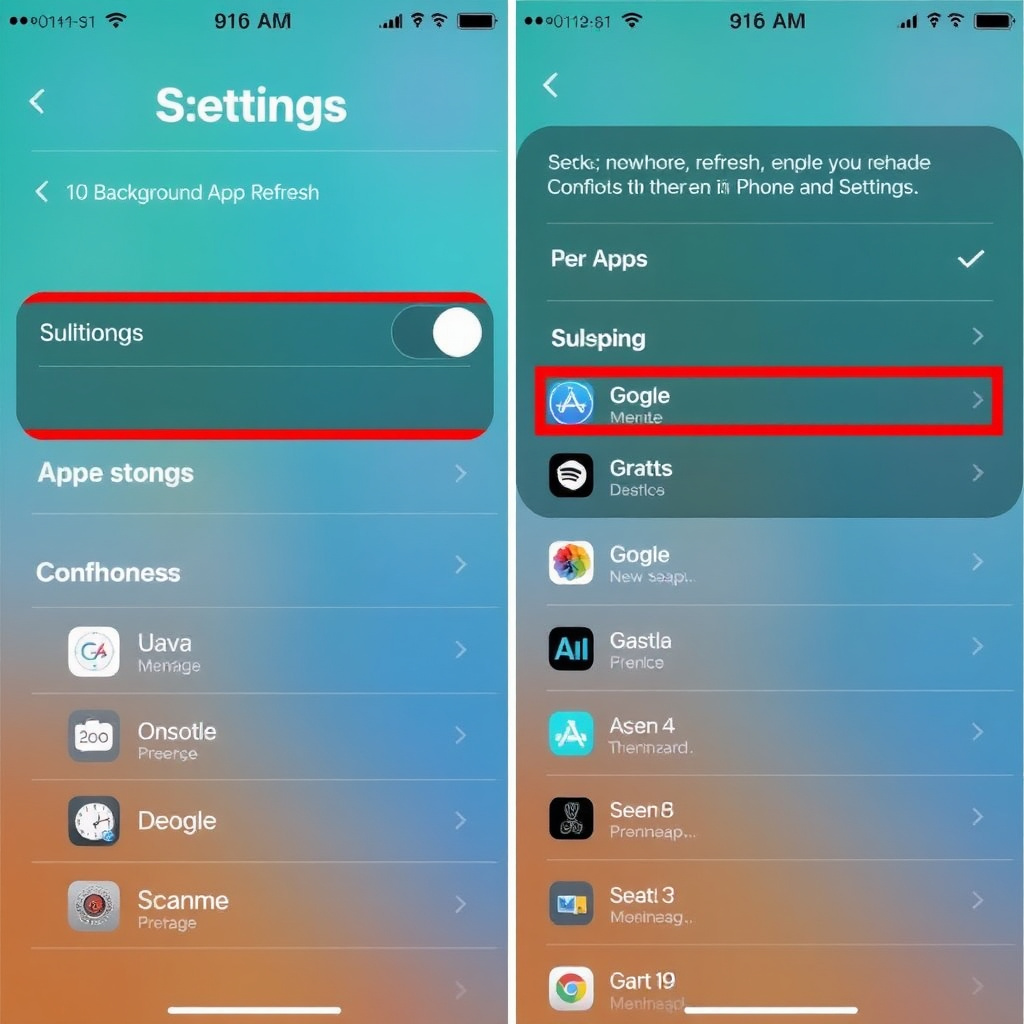
On iOS, Background App Refresh is the primary mechanism controlling which apps can update content in the background. Turning it off for non-essential apps is the single most impactful step iPhone users can take.
System-Level Toggle
- Go to Settings → General → Background App Refresh
- Tap the top option ("Background App Refresh") to choose: Off, Wi-Fi only, or Wi-Fi & Cellular Data
- Setting it to Wi-Fi only is the recommended middle ground — apps still refresh, but only when you're not burning cellular data
Per-App Control
Below the system toggle, you'll see a list of every installed app with its own Background App Refresh switch. Disable it selectively for apps that don't need real-time updates — games, shopping apps, and utility tools are good candidates. Keep it on for apps where timely updates matter.
Low Data Mode
iOS also offers Low Data Mode, which pauses automatic updates, background refresh, and iCloud sync. Enable it for cellular under Settings → Cellular → Cellular Data Options → Low Data Mode, and separately for Wi-Fi under Settings → Wi-Fi → [your network name] → Low Data Mode. It's more aggressive than selectively disabling Background App Refresh, so expect some apps to feel slightly less responsive until you open them.
Adjusting Sync and Fetch Settings for Email and Cloud Apps
Reducing sync frequency for email, cloud storage, and portfolio apps cuts background data without losing functionality — you just receive updates slightly less often.
For email on iOS, go to Settings → Mail → Accounts → Fetch New Data. Switch from Push to Fetch, then set the fetch interval to every 30 minutes or hourly instead of automatically. Push email is convenient, but it keeps a persistent connection open that consumes both data and battery.
On Android, most email clients have their own sync settings within the app. In Gmail, for example, go to Settings → [Account] → Sync frequency and increase the interval. For Google account sync broadly, go to Settings → Accounts → Google → Account Sync and disable sync for services you don't need updating constantly (Google News, Google Fit, etc.).
Cloud storage apps like Google Drive, Dropbox, and iCloud are worth checking too. Restrict automatic photo uploads to Wi-Fi only — this is usually a setting within each app rather than the OS.
Background Data Tips for Crypto and Trading App Users
Crypto and trading app users face a genuine trade-off: the same background activity that drains your data is also what keeps price alerts accurate and wallet balances current. Blanket restrictions can cause you to miss a significant market move.
The practical approach is selective restriction rather than a full block. Here's how to think about it:
- Keep push notifications enabled for your primary exchange or trading app — these are lightweight and don't require full background data to function on most platforms
- Disable background refresh for portfolio trackers you check manually. Apps like CoinGecko or CoinMarketCap don't need to update in the background if you're opening them on demand
- Restrict background data for crypto news aggregators — headlines can wait until you open the app
- For non-custodial wallet apps, background sync is generally low-volume. Restricting it means your balance won't update until you open the app, which is acceptable for most users who aren't actively trading
- If you're running a node or any local blockchain client on a mobile device, that's a different category — those processes are data-intensive by design and should be Wi-Fi only
The key distinction is between apps that need to deliver information to you (push notifications — keep these) versus apps that are fetching information speculatively in the background (background refresh — restrict these).
Quick-Reference Checklist to Minimize Background Data
Run through this list once and you'll cover the majority of background data waste on any device:
- Check your data usage dashboard and identify the top 5 background consumers
- Android: Disable background data per-app for non-essential apps in Settings → Apps
- Android: Enable Data Saver mode and whitelist only critical apps
- iOS: Set Background App Refresh to Wi-Fi only at the system level
- iOS: Disable Background App Refresh individually for games, shopping, and utility apps
- iOS: Enable Low Data Mode on cellular if you're near your data limit
- Switch email from Push to Fetch (every 30–60 minutes)
- Restrict cloud storage auto-uploads to Wi-Fi only
- For crypto apps: keep push notifications on, disable background refresh for trackers and news apps
- Review app permissions — location access set to "Always" triggers more background activity than "While Using"
- Reset your data usage stats at the start of each billing cycle to track progress
Frequently Asked Questions
Does restricting background data affect push notifications?
Usually not. Push notifications on both Android and iOS are delivered through the operating system's own notification service, not through the app's background data connection. Disabling background data for an app typically doesn't stop it from receiving push alerts — though some apps that rely on polling rather than true push may be affected.
Will turning off background data save battery life too?
Yes. Background data and battery drain are closely linked because background processes require the radio to stay active and the CPU to wake periodically. Restricting background data — especially through Data Saver on Android or Low Data Mode on iOS — tends to produce noticeable battery improvements alongside the data savings.
How much data do background apps typically use per month?
It varies widely depending on which apps are installed and how aggressively they sync. Social media apps with autoplay video previews, cloud backup services, and streaming apps with pre-caching can each consume hundreds of megabytes monthly in the background. Checking your own usage dashboard gives you the most accurate picture for your specific setup.
Is it safe to disable background data for crypto wallet apps?
For most users, yes. Disabling background refresh for a crypto wallet means your balance and transaction history won't update until you open the app — your funds are unaffected. The only scenario where this matters is if you're expecting an incoming transaction and need to know about it immediately, in which case push notifications (which remain functional) will still alert you.
Does Low Data Mode on iPhone affect app performance?
It can cause minor delays. Apps that normally pre-load content in the background will load that content when you open them instead, which can mean a brief wait. For most apps this is barely noticeable. The trade-off is worth it when you're managing a tight data allowance or on a slow connection.